Settings & Security
Network
Choose the active network in Settings or from the home network control. Always make sure both parties use the same network.
| Network | Description |
|---|---|
| Mainnet | Bitcoin mainnet. May be unavailable in the current version; follow the UI |
| Bitcoin Testnet | Test network (shown as Testnet4 in the UI). Coins have no real value |
| Regtest | Regression test network for development and integration; claim test BTC from the official site via the Regtest Faucet |
After switching networks, the wallet loads that network’s configuration and data. Networks are isolated. Switching does not automatically create a new node or move assets.
Auto-lock and Sign Out
- By default, the wallet auto-locks after about 15 minutes of idle time. Change this under Settings → Wallet Security → Auto-lock (including options such as Never)
- After lock, enter the unlock password (or biometrics when supported) to continue
- Use Sign out in the danger zone of Settings to lock local wallet access immediately
TIP
Local lock protects wallet access on this device. If the node is locked or stopped, handle that separately in Settings or Node. They are not the same step.
On supported phones, enable biometrics in Settings for easier unlock. You will complete a system check first; if it fails, fall back to the password.
Back Up Your Mnemonic
Open Settings → Wallet Security
Choose the backup mnemonic option
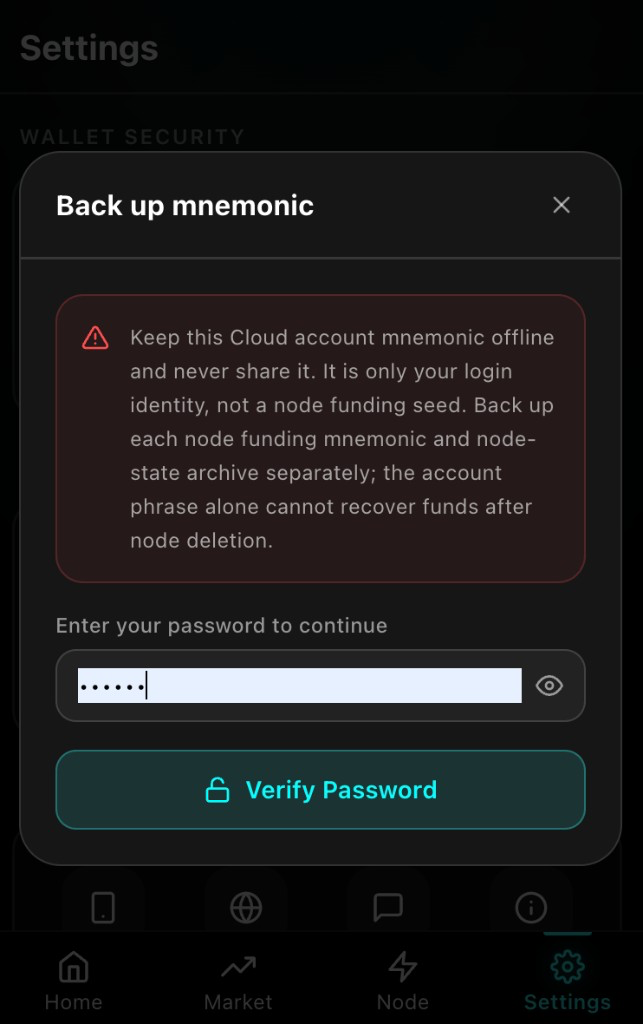
Enter your unlock password, then view and write down the mnemonic
Store it offline. Do not screenshot or upload it
Export Cloud Node Data
When you migrate a cloud node to self-hosting, prepare both of the following. After migration, you cannot restore it back to a cloud node:
- Mnemonic — to recover wallet identity
- Node data backup — to preserve channel, RGB, and other node runtime state
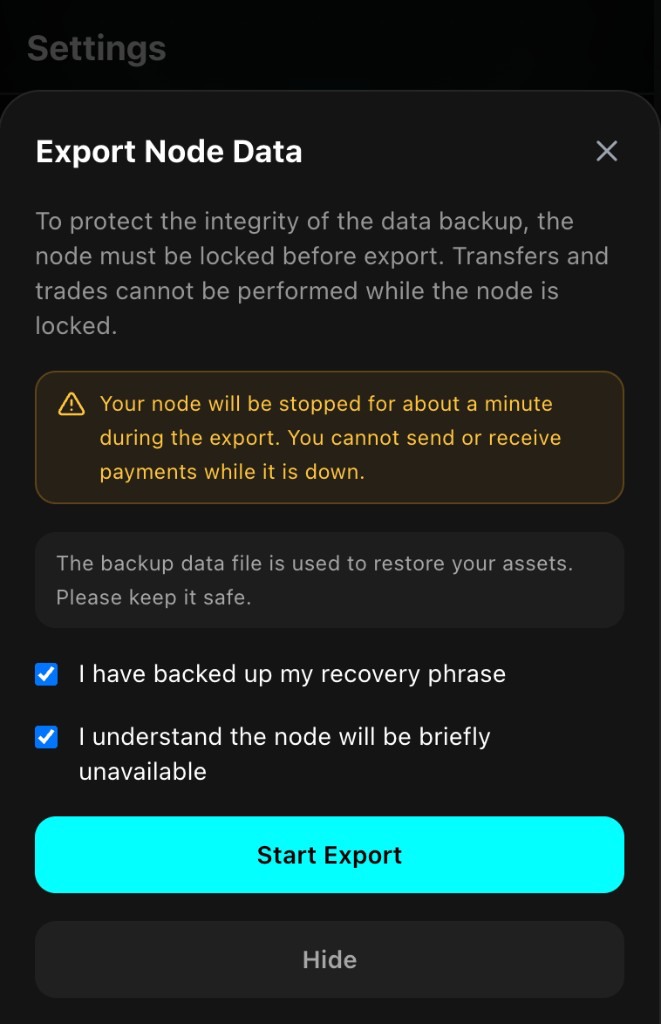
A mnemonic alone is not enough to fully restore node state in a self-hosted environment.
How to export
- Back up your mnemonic first
- In Settings → Wallet Security, start node data export (exact label depends on the UI; you usually need a connected cloud node)
- Read the downtime and risk notices, then confirm
The node may be briefly unavailable. Avoid exporting during active payments - When ready, download the backup file and store it securely
- Follow the prompts to start the node again and confirm it is healthy
Download links or archives may expire. Save them promptly. For migration details, see Storage & Backup and the blog Node Data Export & Self-Hosting.
WARNING
Only one online node should use the same channel state at a time. After migrating to self-hosting, you cannot restore back to a cloud node. When migrating, stop the cloud node before starting your self-hosted copy. Do not delete the original node until you have verified the backup.
DApp Connections (Chrome Extension)
In the Chrome extension, you can connect to compatible sites (for example RGB Dex):
Connect
- Open the site in your browser
- When it requests a connection, review the confirmation dialog
- Check the URL and permissions, then approve or reject
First-time connect usually grants basic read access only. It does not authorize arbitrary payments or signatures. Sensitive actions still require separate confirmation.
Sign
A site may request a signature for login or identity checks:
- Read the message carefully
- Approve only if you trust the source; otherwise reject
Manage connected sites
Under Settings → Wallet Security → Connected sites, review permissions and revoke sites you no longer use. Always verify the URL before connecting.
TIP
Website connection flows mainly apply to the Chrome extension. Mobile apps may differ; follow the product UI.
Security Checklist
- Back up the mnemonic offline and verify the words
- Use a strong unlock password and a sensible auto-lock time
- Before sending, verify network, address, amount, and invoice details
- Connect only to sites and nodes you trust
- When migrating a cloud node to self-hosting, back up both the mnemonic and node data—you cannot restore it back to a cloud node
- Never show or forward your mnemonic to anyone
- Never type your mnemonic on unfamiliar websites
- Never store the mnemonic in screenshots or cloud photo albums