Wallet Setup
Your mnemonic (recovery phrase) is the core credential for recovering wallet access. Keep it offline and secure. Nobody can recover it for you if it is lost.
Create a New Wallet
Open Stash Wallet (toolbar icon in Chrome, or the app on mobile)
On the Welcome screen, select Create Wallet
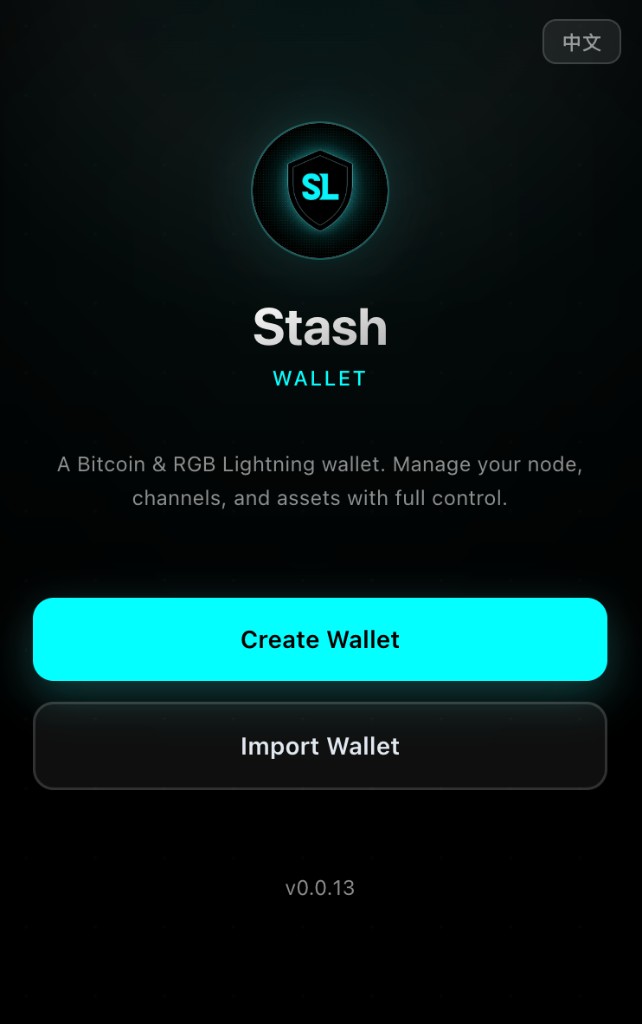
Set and confirm an unlock password
Use at least 8 characters and include at least two of: lowercase letters, uppercase letters, numbers, and symbols. This password protects access on this device. It does not replace your mnemonic backup.Write down the mnemonic shown on screen and double-check it before continuing
The current UI does not force word-by-word verification. Continuing means you have confirmed your own backup.Follow the on-screen steps to finish setup (for example, create or connect a node), then enter the wallet home screen
Security tip
Never screenshot, photograph, or store the mnemonic in cloud drives or chat apps. Prefer pen and paper in a safe place.
Import an Existing Wallet
Open Stash Wallet
On the Welcome screen, select Import Wallet
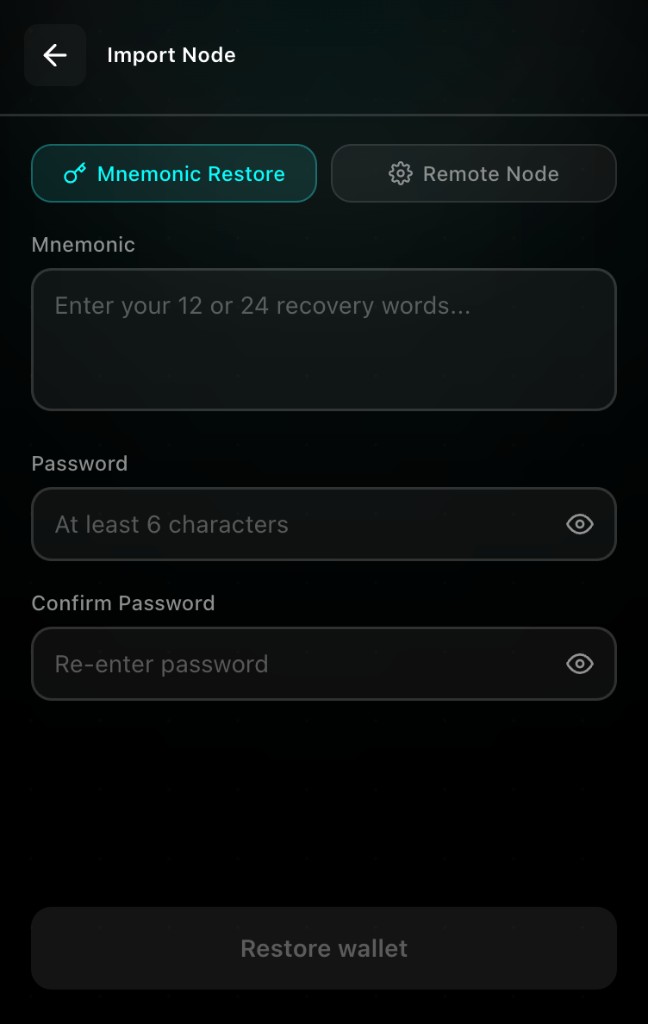
Choose mnemonic restore and enter your phrase with spaces (12 or 24 words)
Set and confirm an unlock password (same rules as create)
After import, follow the prompts to connect or select a node, then check balances and assets
About recovery scope
Importing a mnemonic restores access to your wallet. If a node was deleted, or Lightning channel / RGB-related state was not fully preserved, a mnemonic alone may not restore every history or state.
When you migrate a cloud node to self-hosting, you must back up both the mnemonic and node data, and you cannot restore it back to a cloud node afterward. See Settings & Security.
Unlock the Wallet
When the wallet locks after idle timeout or manual sign-out:
Enter your unlock password on the Unlock screen
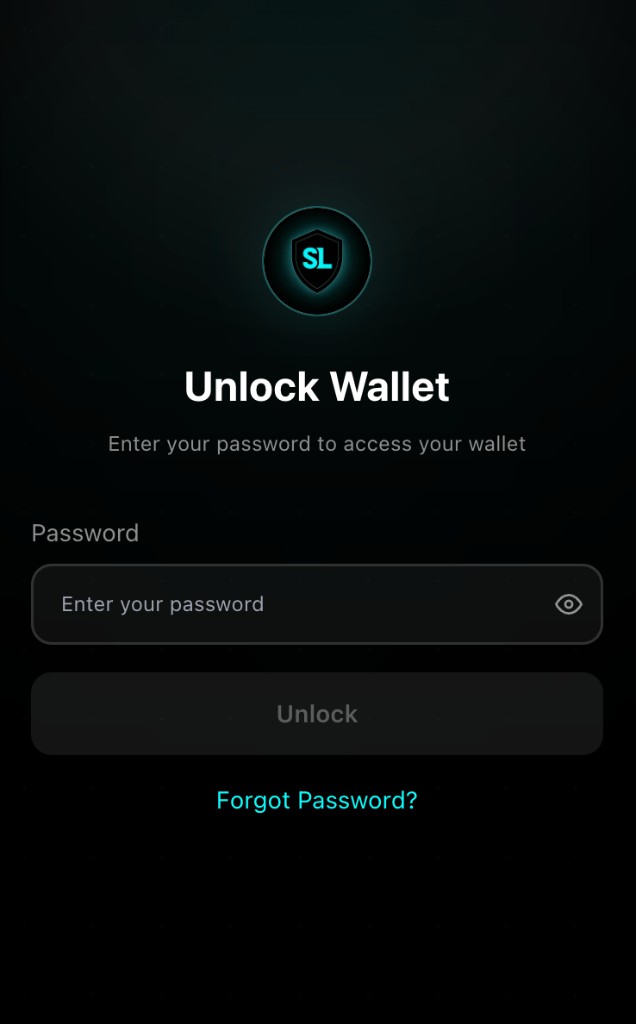
Tap Unlock
On phones that support biometrics, you may unlock with fingerprint or Face ID when enabled.
Forgot password
The unlock password only protects local access and cannot be reset online.
Use the forgot-password option on the Unlock screen
Read the warning carefully: this clears wallet data on this device
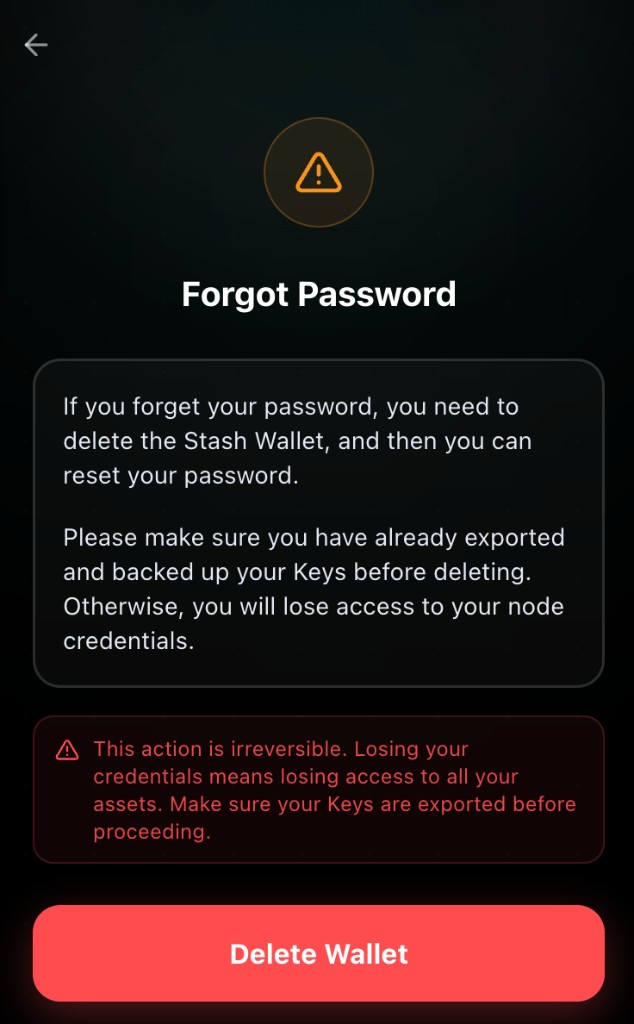
Confirm, return to Welcome, then import again with your backed-up mnemonic (or your own node connection details)
Before proceeding, make sure your mnemonic is safely backed up. If you have migrated or plan to migrate a cloud node to self-hosting, also confirm the node data backup; after migration, it cannot be restored back to a cloud node.
Security Recommendations
- Keep the mnemonic only on offline media you control; never share it
- Use a strong unlock password and keep auto-lock enabled
- Before sending, verify network, address, and amount; blockchain transfers are usually irreversible
- Before upgrading or changing devices, confirm your mnemonic works; when migrating a cloud node to self-hosting, back up node data as well—you cannot restore it back to a cloud node
Next Steps
On Regtest, claim test BTC with the Regtest Faucet first, then continue with Send & Receive BTC.