Node
Your node underpins Lightning payments, RGB Lightning, and some market features. You can use a cloud node or connect a node you run yourself.
Node Overview
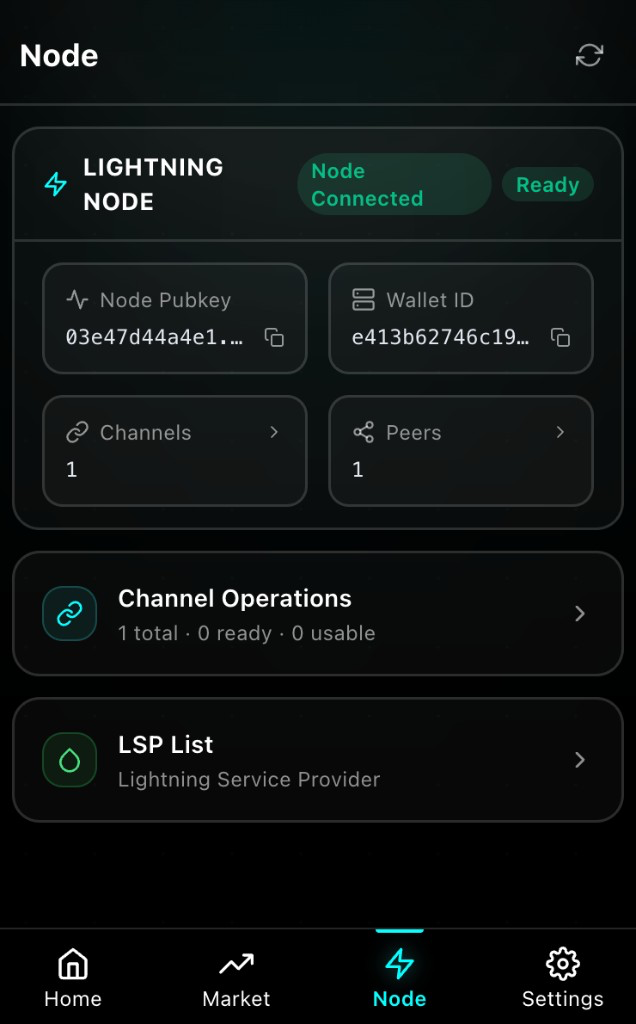
Open Node in the bottom navigation to review items such as:
Node identity and running status
Channel list, capacity, and related balances
Whether the node is ready, or needs unlock/start
Common situations
| What you see | What to do |
|---|---|
| Creating / starting | Wait; avoid repeated taps. Retry if the UI asks you to |
| Stopped | Start the node as prompted |
| Locked | Unlock the node from Settings or the related entry |
| Running but not ready | Wait, refresh, then trade only after status is healthy |
| Balances look stale | Refresh; wait for sync and on-chain confirmation when needed |
TIP
Unlocking the wallet (local password) is different from unlocking or starting the node. Confirm the node is truly ready before send/receive.
After first create or connect, follow backup prompts. When migrating a cloud node to self-hosting, back up both the mnemonic and node data—you cannot restore it back to a cloud node. See Export cloud node data.
Manage Channels and Settlement
On the Node page you can:
- Review open channels and capacity direction
- Open or close channels
- Track settlement after close
After close, funds may take time to return to a spendable balance. Force close usually takes longer. Until settlement finishes, do not assume funds are reusable. See also Channel management.
Notes
- Confirm the node is ready before trading—not only that the wallet is unlocked
- Watch channel capacity and online status so payments do not fail at the last step
- When migrating a cloud node to self-hosting, back up both the mnemonic and node data—you cannot restore it back to a cloud node
- Do not delete a node until backups are verified
Next Steps
Go to Settings & Security for lock, backup, and connection management.