From Managed to Self-Hosted: Giving Node Data Ownership Back to Users
This post documents the design of Stash Wallet's node data export: why a cloud node must offer a data exit, the real trade-off between two approaches, why we ultimately chose Plan A, and how users can rebuild the same RGB Lightning node on their own machine.
1. Why This Had to Be Built
Stash Wallet offers RGB Lightning cloud nodes: users don't run Docker or maintain a 24/7 machine. For most users that's the right default — a Lightning node that goes offline can't receive payments and risks force-closes from its peers.
Stash Cloud has always been backing up cloud nodes automatically. That's standard platform capability: node data lands periodically in separate storage, so when a machine fails, a container misbehaves, or an operator error corrupts data, we can restore the node to its most recent good state — usually without the user noticing anything happened. This layer is on by default and requires nothing from the user.
But it solves service availability, not ownership. Automatic backups live in the infrastructure provider's storage, managed by the provider, restored when the provider decides. That covers the vast majority of technical faults, and misses exactly one thing: a user who wants to keep their own node data and run an RGB Lightning node without depending on any infrastructure provider.
Which is the problem cloud nodes can't design around: the user's channel state and RGB allocations physically live on the provider's cloud disks.
The mnemonic has always been in the user's hands. For Lightning, though, the mnemonic isn't the whole story:
- Channel state holds each channel's latest commitment transaction and revocation secrets. Lose it, and even with the mnemonic you can't safely close channels to recover funds.
- RGB state holds asset allocations and transfer history. Lose it, and the on-chain UTXO still exists, but you can't prove which RGB assets it carries.
Put differently: the mnemonic holds ownership of the funds; the node data holds recoverability of the funds. Handing over only the first leaves the user's control incomplete.
So this feature isn't about filling a gap in backups — the backups were already there. It's about adding the exit the user controls: let them take their node data at any time and actually run it on their own machine. Not an archive you merely store, but a verified migration path.
Automatic backups guarantee "the provider can restore it for you." Data export guarantees "you can restore it without the provider." Both need to exist.
2. Defining the Deliverable First
Before touching orchestration, we unpacked a real archive produced by the upstream rgbldkd backup export. This can't be inferred from docs; you have to open the file. Two conclusions shaped everything after:
1. The archive contains no key material. A leaked backup file cannot be used to steal funds. Restoring requires both the mnemonic and the backup file: the mnemonic rebuilds the keys, the archive rebuilds channel and RGB state.
2. master_fingerprint in manifest.json binds the pair together.
{
  "format_version": 1,
  "network": "regtest",
  "created_at_unix_secs": 1783956432,
  "rgbldkd_version": "0.7.0-bitlight.1",
  "master_fingerprint": "90820cfd",
  "node_alias": "Node 1",
  "files": [{ "path": "…", "size": 405504, "sha256": "1ab12f3e…" }]
}
On restore, this fingerprint is compared against the keys derived from the mnemonic, and a mismatch is rejected outright — so "wrong archive" or "wrong mnemonic" is caught at step one instead of producing a broken node.
3. The Real Constraint
The requirement sounds simple: read the node's data disk, package it, upload it. The difficulty is that the node is using that disk.
A cloud disk can be attached to exactly one running machine at a time — that's basic block-storage semantics, not something configuration can work around. So "leave the node running and read the disk from a second process" is not an option.
More importantly, even if you could read a disk that's being written to, the resulting archive would likely be broken. A running node writes to its databases continuously, so you may capture a half-written state. And that corruption reports no error at export time: the user gets a file that looks fine and discovers months later, when they actually need it, that it won't load. That's the worst failure mode available — silent corruption, surfacing at the moment of maximum need.
So there are only two paths: stop the node and read the disk exclusively, or snapshot the disk and read the snapshot.
4. Plan A vs. Plan B
4.1 Plan A: Stop the Node, Read Exclusively
Lock node ──► Stop node, disk detaches ──► Temp task mounts exclusively, exports and uploads ──► Node restartsOne subtlety that's easy to get wrong: locking the node does not make the data consistent — the process actually exiting does. A lock only blocks new payments, new channels, and new asset operations at the application layer; the process is still alive and may hold unflushed data in database buffers. The real flush happens the moment the process exits.
Plan A gives the strongest consistency: what you read is the state after the process exited cleanly and everything was flushed to disk — equivalent to a user shutting the node down properly and then copying the directory. The cost is about a minute of node downtime — a measured full export (node stop, export, upload, node back up) came in at 52.1 seconds.
4.2 Plan B: Snapshot Copy
Lock node ──► Snapshot (seconds) ──► Unlock immediately, node back in service
                    │
        Create a copy disk from the snapshot → export and upload from the copy → clean up
Snapshotting takes seconds, the node resumes service immediately, and all export work happens on the copy. Plan B looks like a clean win — no downtime, zero user impact.
But B carries one decisive cost: a weaker consistency guarantee.
A snapshot is crash-consistent, semantically equivalent to pulling the power cord on a running machine. The node process is still alive at that moment, so the snapshot may contain database transaction logs not yet merged into the main files, or miss buffered content entirely. Whether the copy yields complete data depends on whether the database's own log recovery can repair it back to a consistent state — that's a probability, not a deterministic guarantee.
4.3 Side by Side
| Plan A (downtime, exclusive) | Plan B (snapshot copy) | |
|---|---|---|
| User node downtime | ~1 minute (measured 52s) | None (locked for seconds) |
| Data consistency | Deterministic: complete state after clean process exit | Crash-consistent, relies on database log recovery |
| Data point-in-time | The moment of export | The moment of snapshot |
| Implementation complexity | Low | High (an extra layer of copy-resource lifecycle management) |
5. Why We Chose Plan A
B's "no downtime" is a genuinely attractive pitch, and we evaluated it seriously. We chose A, for these reasons in order of weight.
5.1 A Backup's Only Value Is That It Will Definitely Restore
This is the decisive one.
The entire point of a backup feature is that it restores your data at the moment it's needed. If restoring is probabilistic, the feature effectively doesn't exist — the user believes they have a backup when what they're holding is a lottery ticket.
Plan A delivers determinism: the process exits cleanly, the kernel completes the flush, then we read the disk. That's the same thing as a user shutting the node down and copying the data directory themselves — no recovery mechanism needs to work for it to hold.
Plan B depends on database log recovery to repair a crash-consistent copy into a usable state. That mechanism works most of the time, but "most of the time" is unacceptable when applied to channel state: a wrong channel state isn't just lost data, it can lead to broadcasting a stale commitment transaction — which gets you penalized by the peer.
Trading a probabilistic backup for under a minute of saved downtime is a bad deal.
5.2 The Downtime Is User-Initiated and Fully Predictable
Now look at how expensive that sub-minute window really is.
The key point: we aren't randomly dropping the user's node — the user tapped "Export." They're fully informed, they choose the timing, and they can pick a moment with no pending payments. The UI states plainly that "your node will be unavailable for about a minute and cannot send or receive during that time," and nothing starts until they acknowledge it.
That is categorically different from "we quietly took your node down for a minute." A one-minute outage the user initiated with clear expectations, in exchange for a backup that's certain to restore — most users will consider that a good trade.
We also did two things to keep that cost minimal: a full preflight check before export (node status, lock status, platform concurrency budget), rejecting outright if anything fails so users never pay downtime and then fail anyway; and global concurrency limiting, so we never have a large number of nodes inside a downtime window simultaneously.
5.3 The Trade-off in One Line
Plan B spends certainty of the backup to buy the user a zero-impact experience; Plan A spends one informed minute of the user's time to buy certainty of the backup.
You can ask a user to wait a minute for a backup. You can't ask them to gamble on one.
6. User Flow: Exporting from Stash Wallet
The entry point lives under Settings → Wallet Security, right after "Export Recovery Phrase". That placement is deliberate: the mnemonic and the backup file are one set, and we want users completing a full backup in one place.
The entry appears only in cloud node mode — self-hosted users who configured a remote node already have their data on their own machine.
Step 1: Read the notes and check both preconditions
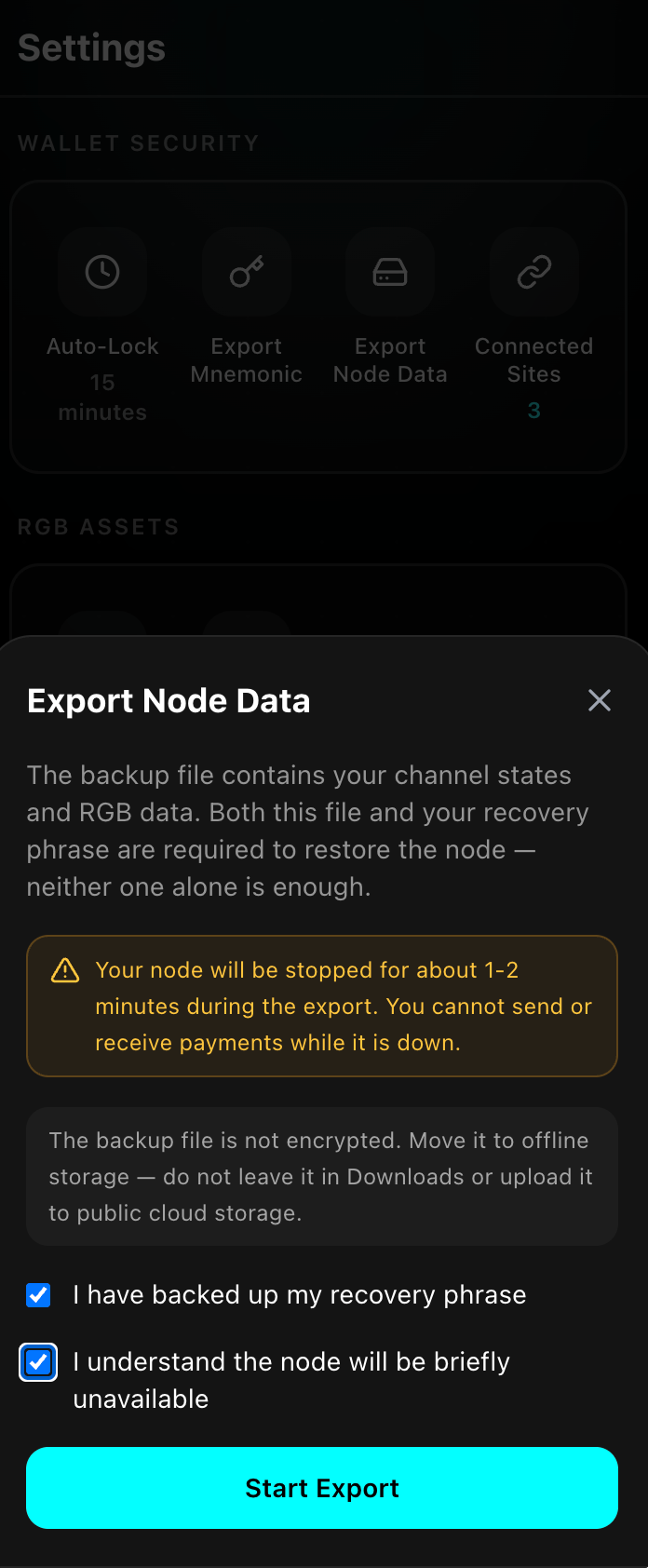
The "Export Node Data" dialog states two things:
- The backup file contains your channel states and RGB data, and it is one set with your mnemonic — neither one alone can restore the node.
- Your node will be stopped for about 1–2 minutes during the export and cannot send or receive payments — do this when you have no pending payments.
Both checkboxes must be ticked before "Start Export" becomes available: "I have backed up my recovery phrase" and "I understand the node will be briefly unavailable". The first one matters because a backup file without the mnemonic restores nothing — the checkbox makes that explicit before the export, not after.
Step 2: Confirm "Stop Node and Back Up"
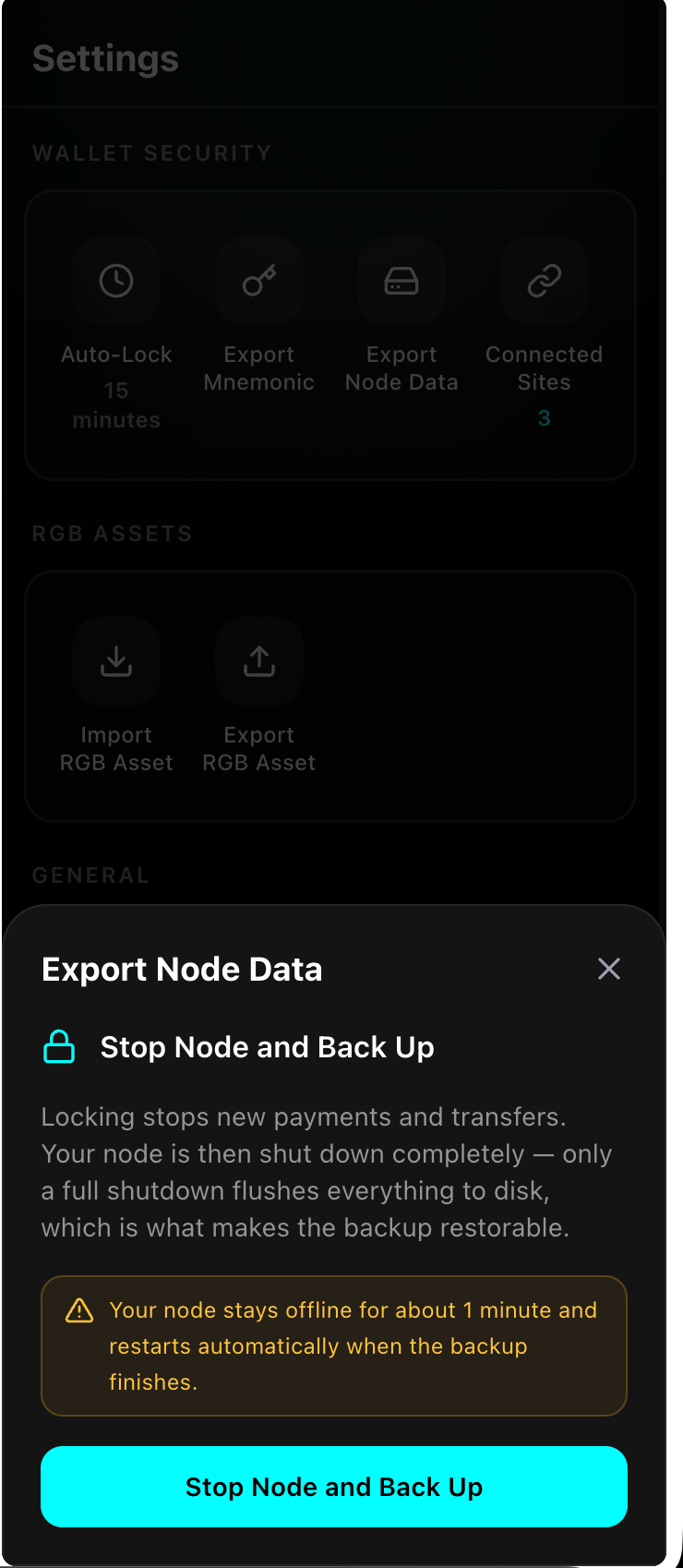
The second step explains why the stop is unavoidable: locking only blocks new payments and transfers, while only a full shutdown flushes everything to disk — and that is what makes the backup restorable. Confirm with "Stop Node and Back Up" to begin.
Step 3: Wait for the export
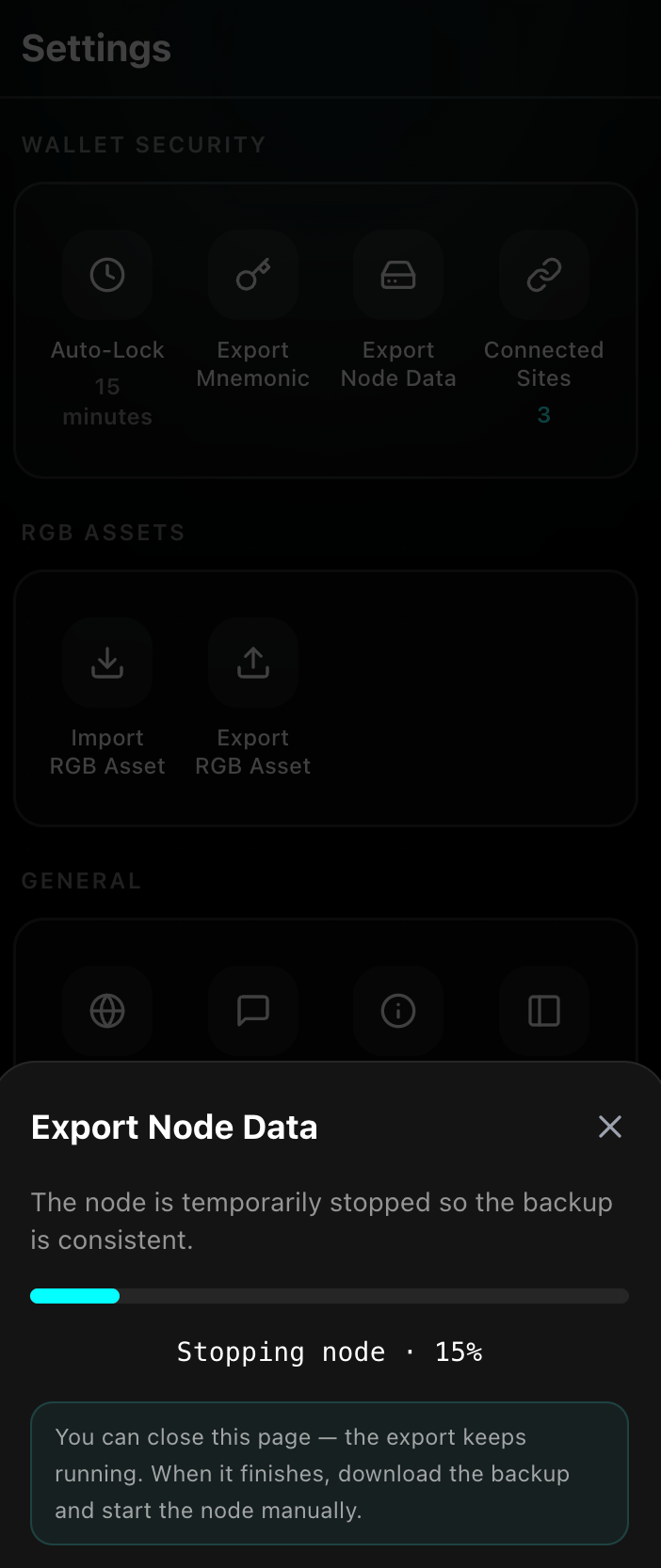
The progress bar advances through real stages (lock → stop → export → upload); the screenshot sits at Stopping node · 15%.
You can close this page — the export keeps running in the background, and the progress view is restored when you reopen it. Come back afterwards to download the backup and start the node yourself.
Step 4: Download the backup, then start the node
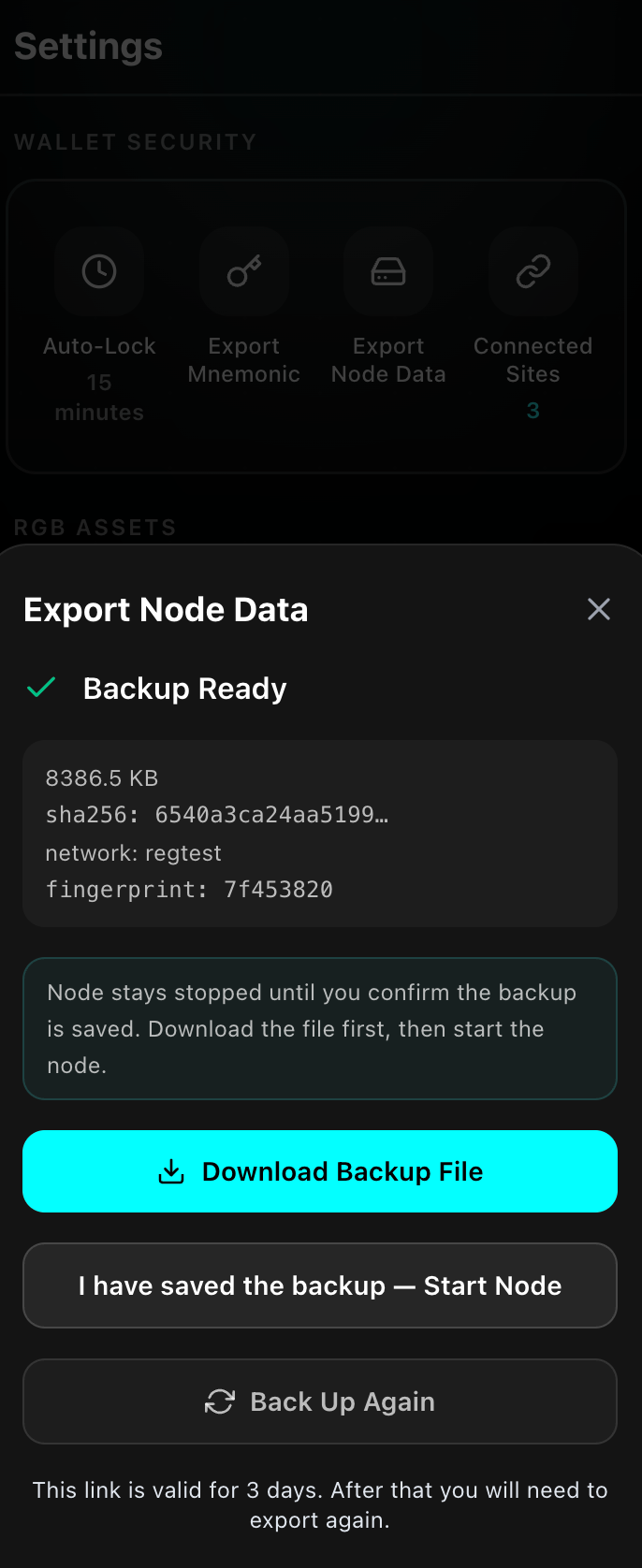
On completion you get "Backup Ready" and the archive summary: size, first 16 characters of the sha256, network, and master fingerprint.
One detail here is deliberate: the node does not restart on its own. It stays stopped until you confirm the backup is safely saved. The order is "Download Backup File" first, then "I have saved the backup — Start Node". If you aren't confident in this archive, "Back Up Again" redoes it.
The download link is valid for 3 days; after that you'll need to export again.
7. User Flow: Restoring on Bitlight Control Panel
The archive follows the upstream rgbldkd standard format, so it can be read and restored directly by Bitlight RGB LDK Control Panel. This is the whole point of the feature: not an archive you merely store, but one you can actually run.
Have both of these ready before restoring
- Your original mnemonic — exactly the one used at export time. The backup contains no key material, and the mnemonic is the critical credential for rebuilding it.
- The backup archive
.tar— the file you downloaded from Stash Wallet.
Neither works without the other. Import validates master_fingerprint and rejects a mismatch.
Step 1: Install and launch Control Panel, then choose Local Node
Get the installer from the upstream repository and launch it, making sure Docker is running locally. On macOS/Windows, confirm the archive's directory is in Docker Desktop's File Sharing list, or the mount will fail.
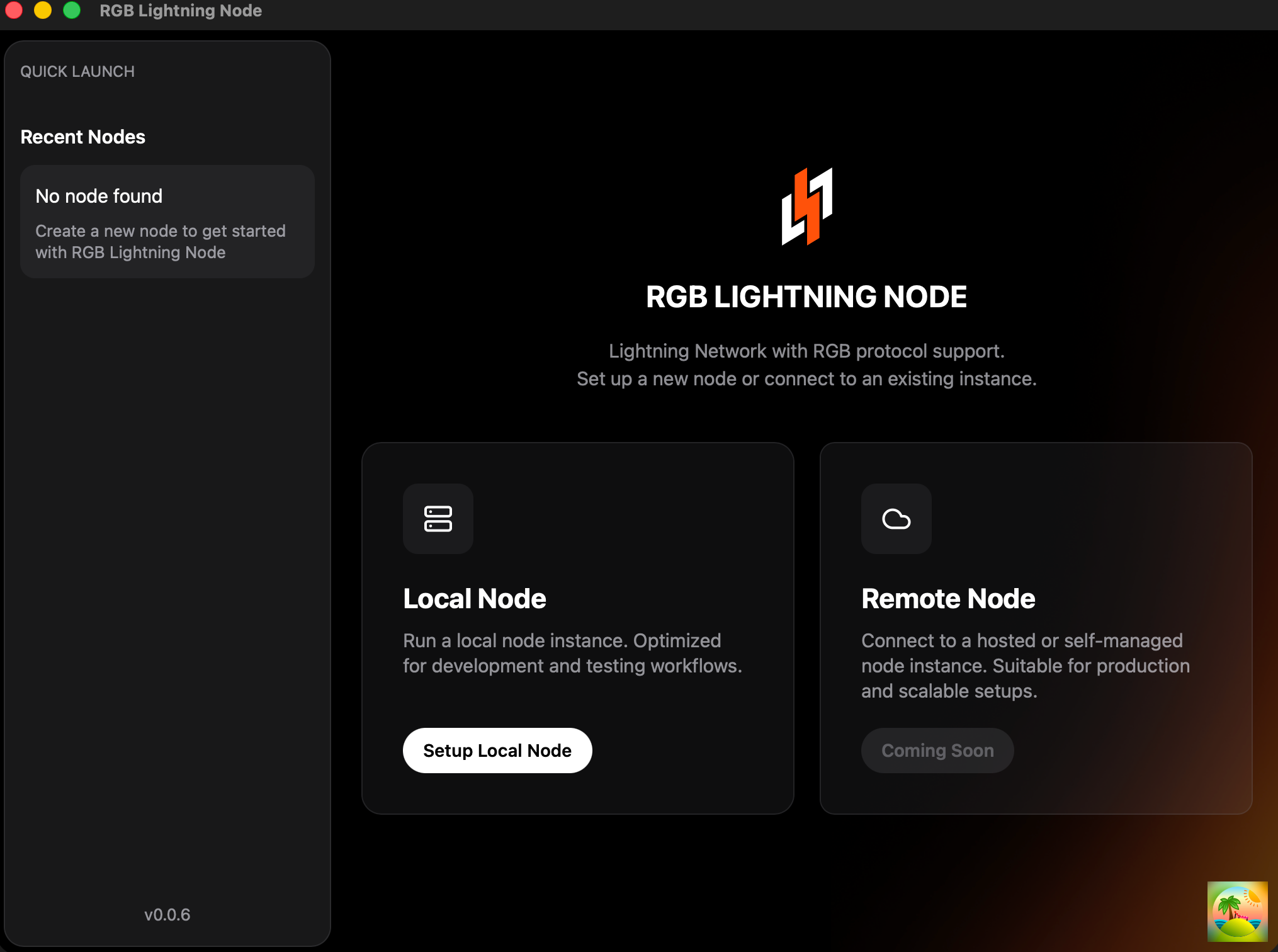
The first screen shows "Recent Nodes" on the left (empty on first launch) and two entries on the right: Local Node (run a node on this machine) and Remote Node (connect to a remote instance, currently Coming Soon). Restoring goes through Setup Local Node.
On regtest, point esplora at the same chain the archive came from
The BDK wallet state inside the archive records the block height it synced to (its checkpoint). If the restored node connects to a different regtest chain, that checkpoint cannot connect to the local chain: the node fails to sync during startup and stops itself, and the UI reports start node failed: WalletOperationFailed.
When importing an archive exported from this platform, regtest's esplora must be:
VITE_REGTEST_API=https://esplora-regtest.stashlabs.ioBe aware that editing .env may have no effect. The upstream repository's scripts/bootstrap-local.sh contains this line:
export VITE_REGTEST_API=http://host.docker.internal:3003It brings up a local bitcoind + esplora stack (mining only 101 blocks) and exports the variable into the process environment. Vite gives process environment variables precedence over .env files, so as long as you launch through this script your .env value is overridden — restarting does not help. That local setup is fine for creating a fresh wallet, but importing an archive from this platform will always hit the chain mismatch.
To work around it, skip the script and pass the value explicitly:
VITE_REGTEST_API=https://esplora-regtest.stashlabs.io pnpm tauri devOr change that line in the script to a default-value form so an external value wins:
export VITE_REGTEST_API="${VITE_REGTEST_API:-http://host.docker.internal:3003}"The esplora address is baked into the node context and the container's startup arguments when the node is created, so changing it after the node exists has no effect. If you already created a node with the wrong address, fix esplora_url in the context and remove the container (keeping the data volume preserves what was already imported), then start and unlock again.
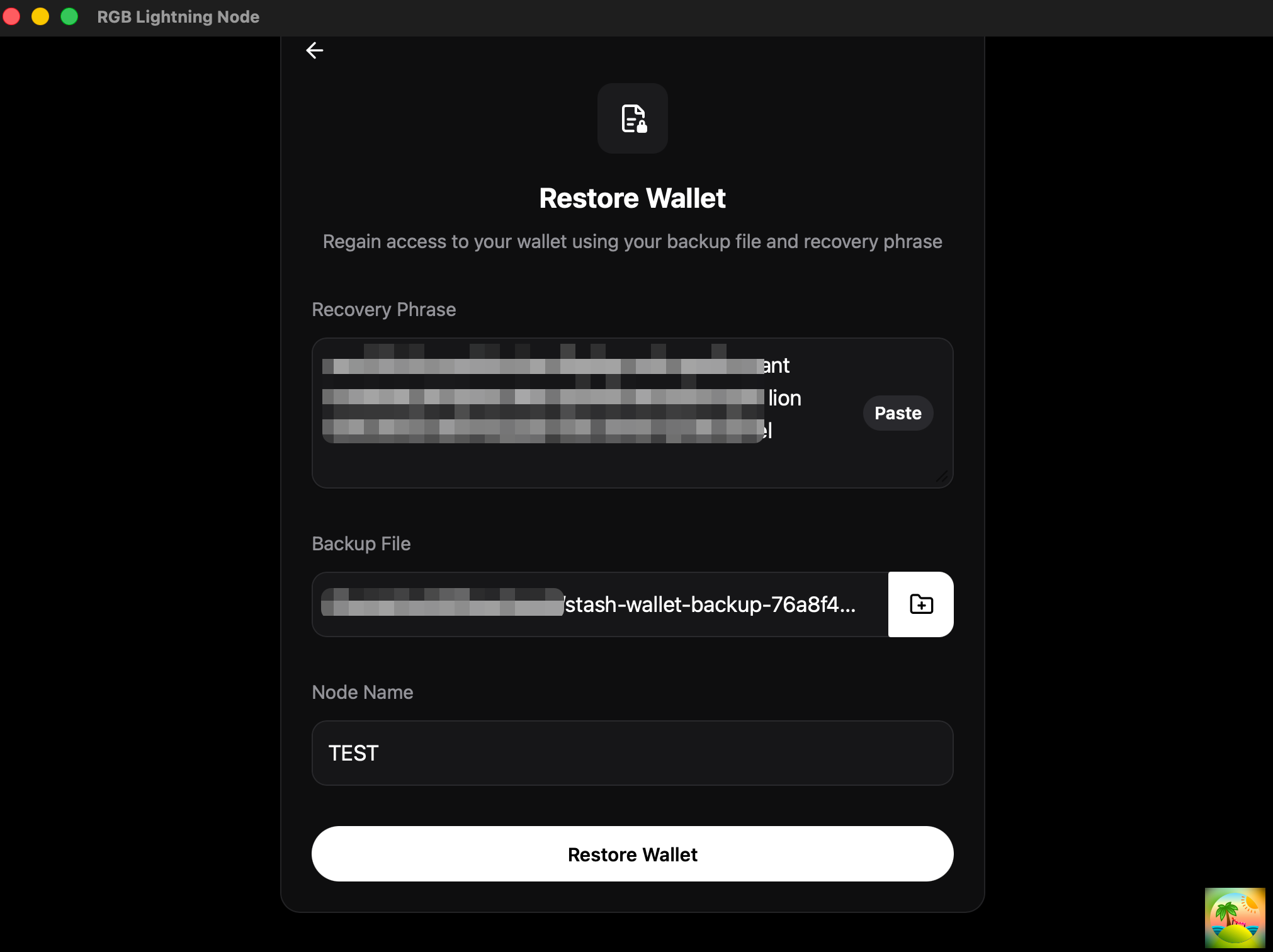
Step 2: Enter your mnemonic and archive, then restore the wallet
On the "Restore Wallet" screen, fill in three fields:
- Recovery Phrase — the mnemonic of the wallet you exported from; "Paste" works.
- Backup File — the
stash-wallet-backup-*.taryou downloaded from Stash Wallet. - Node Name — a name for the local node, anything you like (
TESTin the screenshot).
Click "Restore Wallet" to start. This step checks the master_fingerprint in the archive's manifest.json against the fingerprint derived from the mnemonic, and rejects a mismatch outright — "wrong backup" or "wrong mnemonic" is caught right here, rather than producing a node that starts but holds inconsistent state.
Step 3: Verify balances and assets
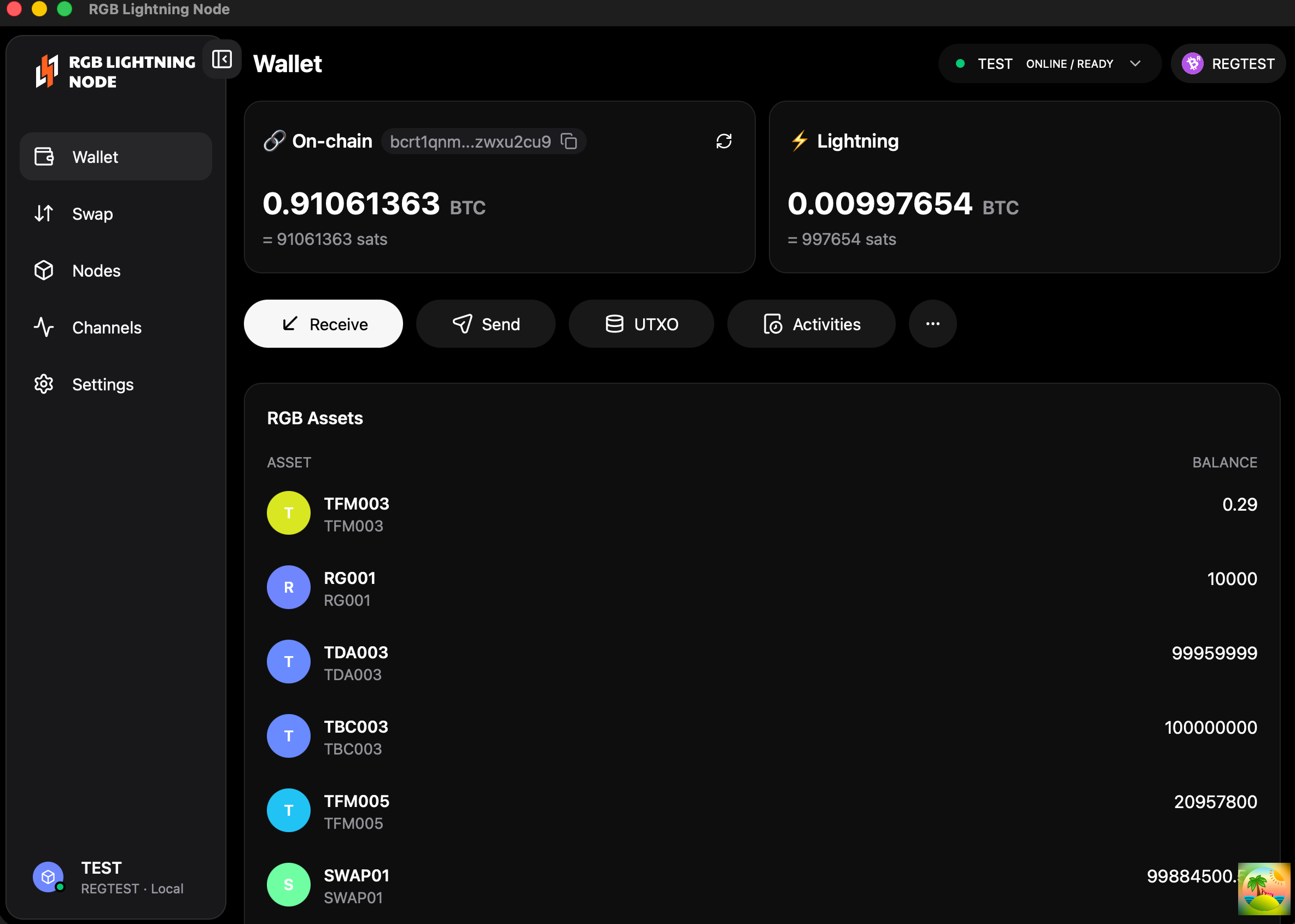
Once the restore finishes the node starts, with the node name and ONLINE / READY in the top right, alongside the current network (REGTEST in the screenshot).
This is the real acceptance point for the whole path: check that the on-chain balance, Lightning balance, and RGB asset list match what you had before the export. The Channels page on the left confirms whether every channel came back.
Only one node may be online
After restoring, the same channel state must never run in two places. Running the cloud node and the self-hosted node simultaneously means both interact with peers using the same commitment transactions, which readily triggers the peer's punishment path (force close + penalty). This is an inherent Lightning constraint, not an implementation defect.
The correct sequence: once you've confirmed the self-hosted node works, disable the cloud node in Stash Wallet first, then start using the self-hosted one. Don't skip this step, and don't reverse the order.
8. Reliability Verification
Choosing Plan A concentrates the risk on the stop-and-restore path. So the gate for shipping wasn't "export succeeds" — it was the node comes back under every abnormal condition, and the backup actually works.
We verified in three layers, each answering a different question.
8.1 Unit Tests: Are the Orchestration Parameters Right?
The first layer covers the things that are wrong but still run: whether the temporary task's resource orchestration matches intent, whether concurrent task claiming lets exactly one winner through, whether failure classification maps stably onto errors that mean something to the user, and whether download credential validation and expiry checks behave correctly.
The value here is that this class of bug shows up in manual testing as "fails occasionally." Only assertions in code catch it reliably.
8.2 Chaos Tests: Does the Node Come Back After an Abrupt Failure?
This is the most important of the three layers, because what it decides isn't "does the feature work well" but whether we can permanently damage a user's node.
We injected a failure at every stage of the path: the management process killed mid-export, the temporary task never starting, disk detach timing out, upload failing, the node failing to come back up, and the same user triggering multiple exports concurrently.
Every scenario shares one bar: the task must reach an unambiguous terminal state, the user's node must already be restored, and no leftover resource may hold the data disk.
If this layer doesn't pass, the feature cannot ship. A backup feature that occasionally leaves a node unable to start is worse than no backup feature.
8.3 End-to-End Tests: Can the Backup Actually Be Restored?
The first two layers prove the flow is robust, but neither answers the fundamental question: is the thing we exported actually usable?
So the end-to-end bar isn't "export succeeded" — it's completing a real path: create a node → open channels → send and receive RGB assets → export → node restarts after the backup is confirmed saved, channels intact, payments work again → restore on Bitlight Control Panel → channels back, balances identical to export time.
That last step is irreplaceable: reading our archive with an open-source product is the only way to judge whether the format contract truly aligns. Being correctly recognized and restored by Control Panel is what proves we produce a standard backup rather than a backup file that merely looks right. It's also what lets us promise self-hosting in the docs — not because the format looks compatible, but because it has actually been run through.
We also deliberately verified the error paths users are likely to hit: restoring with the wrong mnemonic, a truncated or tampered archive, and a network type mismatch. These must fail clearly at the first step of restore rather than producing a node that starts but holds inconsistent state — failing loudly is considerably safer than failing quietly.
9. Closing
Node data export is the kind of feature that seems unimportant until the day it's the only thing that matters. Its difficulty isn't the export logic; it's this: under the storage constraints of a cloud node environment, how do you hand data ownership genuinely back to users without sacrificing the reliability of the backup?
The choice came down to one judgment: between "no downtime" and "guaranteed to restore," which one can't be given up? Our answer is the latter. You can ask a user to wait a minute for a backup, but you can't ask them to gamble on one — a probabilistic backup isn't meaningfully different from no backup at the moment you need it.
The verification above also proved something else along the way: the Stash stack — Stash Cloud and Stash Wallet — is 100% compatible with upstream. An archive produced by Stash Cloud can be read and fully restored by the upstream RGB LDK Control Panel, and Stash Wallet's mnemonic scheme rebuilds the very same wallet inside that upstream product. That means users can walk away from this cloud node service with their data at any time and keep running on the upstream open-source implementation — your node data isn't locked into the platform, as an engineering fact rather than a promise.